
Supporting info: Meters
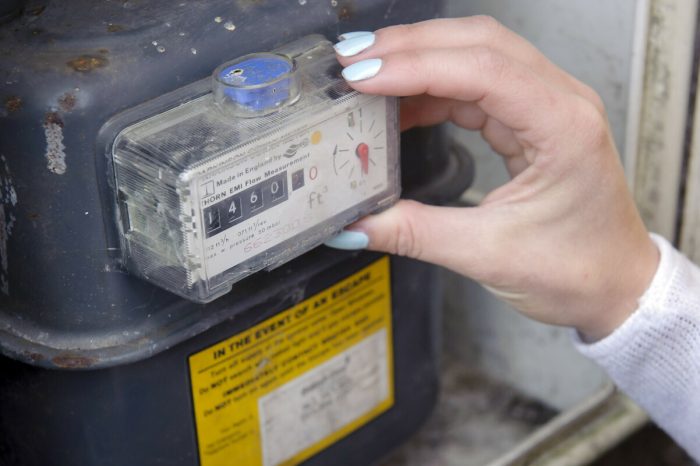
To better support you, we might ask for photos of your energy meters.
1. Make sure the photo clearly shows the information on your meter’s screen
Our advisors may ask for a photo that shows a meter reading, or your remaining balance, or that your meter is in emergency credit mode.
If you’re not sure how to take a meter reading, our meter reading guide will help you.
For help finding the right information, take a look at our gas prepayment meter screens and electricity prepayment meter screens guides.
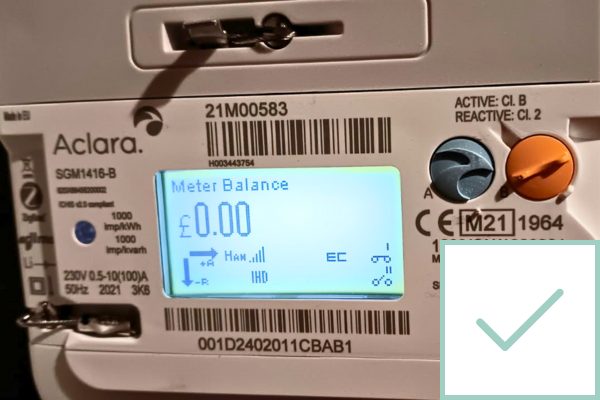
This photo clearly shows that the meter balance is £0.00. The letters “EC” also show the meter is in emergency credit mode.
Remember, the photo also has to show the meter serial number. In this photo, you can see the meter serial number above the top barcode: 21M00583. (The last two numbers have been removed for privacy purposes.)
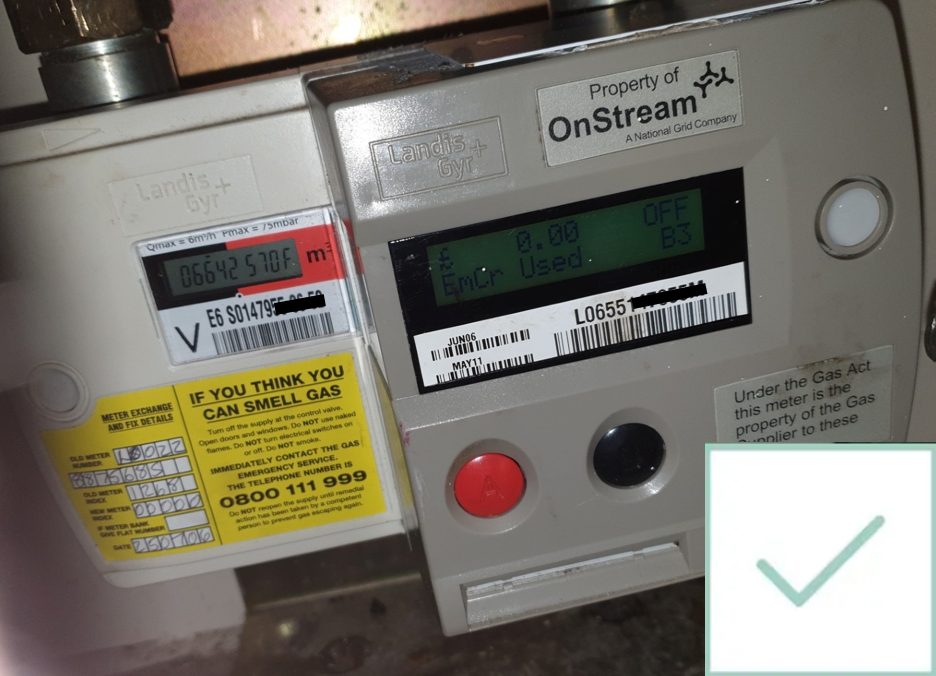
This photo is a an example of a gas meter with a balance of £0.00. This balance is shown on the larger screen to the right screen.
Below this screen, and the red and black buttons, is the slot for the top-up card which is how credit can be added to your meter.
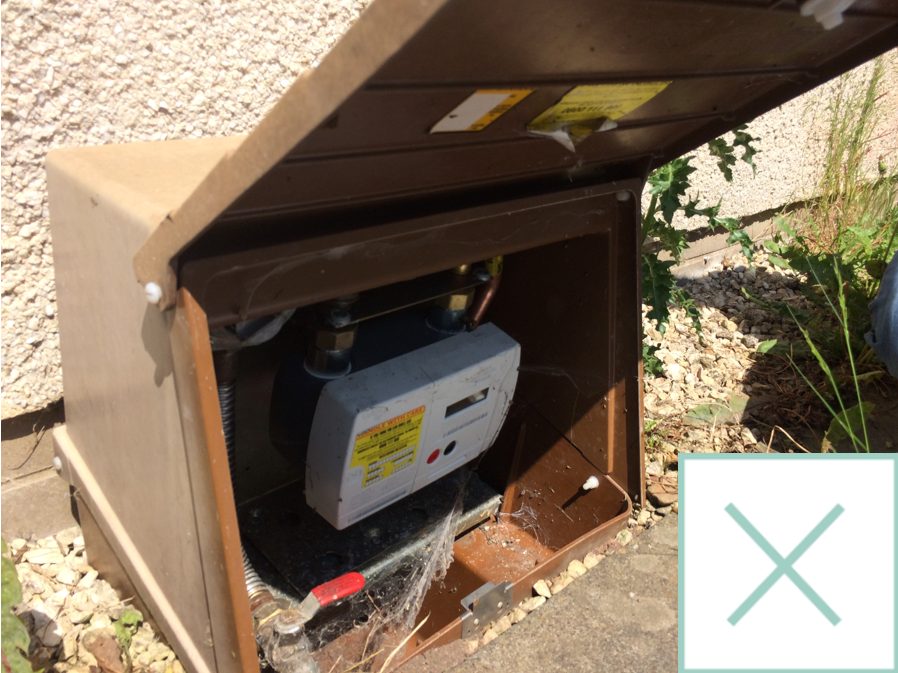
This photo shows a smart gas smart meter in a box outside a home. However, the digits on the box are not visible in the image and wouldn’t be useable by our advisors.
2. Make sure you’re sending a photo of your meter, not something else.
If you’re not sure what your meter looks like, take a look at the examples below. We’ve also included some photos of things people often mistake for meters.
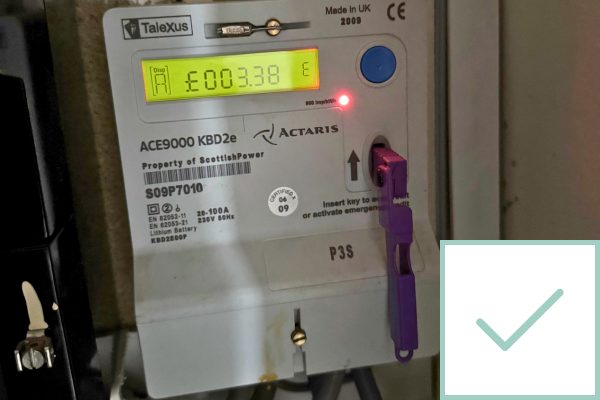
Electricity prepayment meter
Your electricity prepayment meter might be near the boiler, in a cupboard, or in a box outside your home.
You should see at least four wires going into it.
There should also be a slot for the key or card which you use to top up the meter.
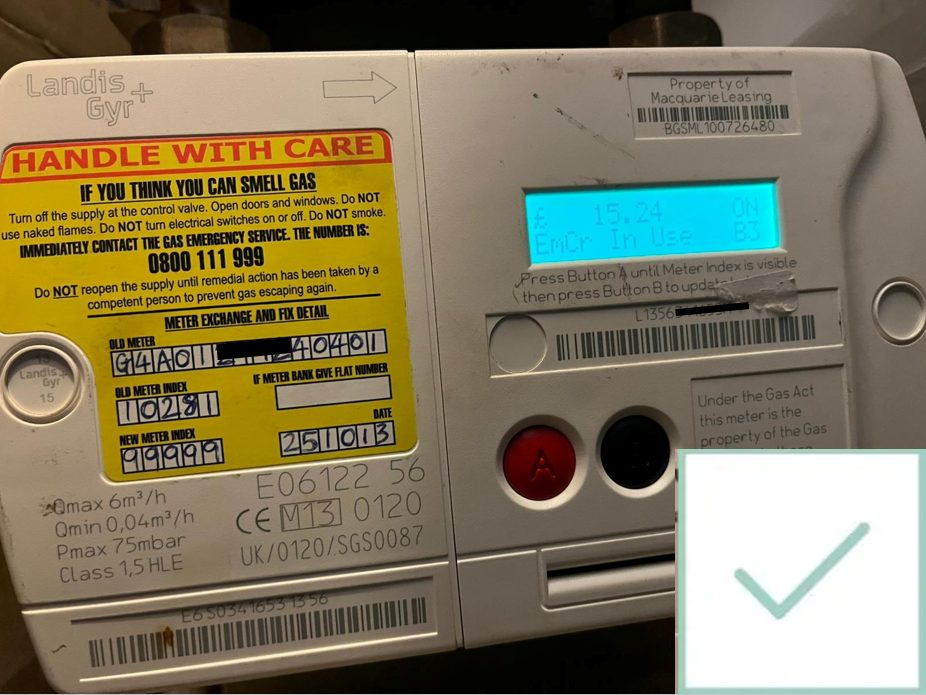
Gas smart meter
Your gas smart meter might be in a box outside your home or it might be near your boiler.
Some gas smart meters have a red A and black B button. Others have a keypad with a blue A and red B button.
You should see two pipes going into your gas smart meter.
Your gas smart meter may also have a yellow sticker on it with the number for the Gas Emergency Service.
This image shows is an example of a meter that is using emergency credit, as can be read on the screen.
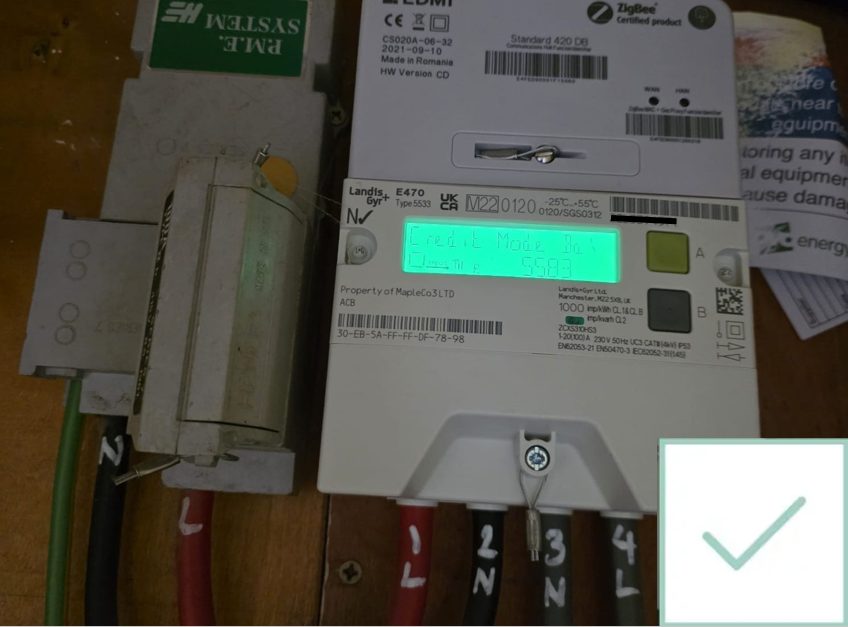
Electricity smart meter
Your electricity smart meter might be near the boiler, in a cupboard, or in a box outside your home.
Some electricity smart meters have a green A and grey B button. Others have a keypad or arrow buttons.
You should see at least four wires going into your electricity smart meter.
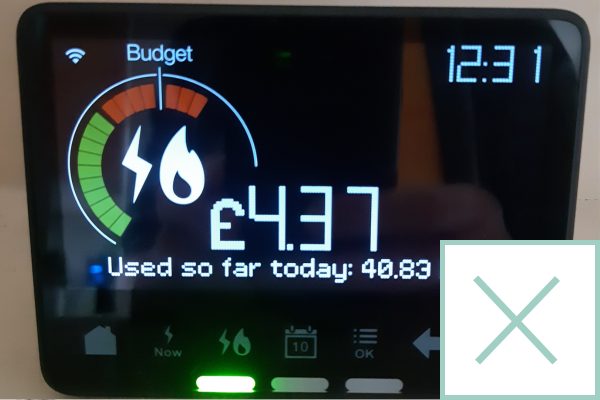
Smart meter In Home Display
Lots of people confuse their smart meter with their In Home Display (IHD).
Your In Home Display is about the size of a wallet.
The IHD shows you the cost of the gas and/or electricity you’ve used so far today, this week, or this month.
If you unplug its charger, you can move the IHD from room to room. You can’t do this with your meter.
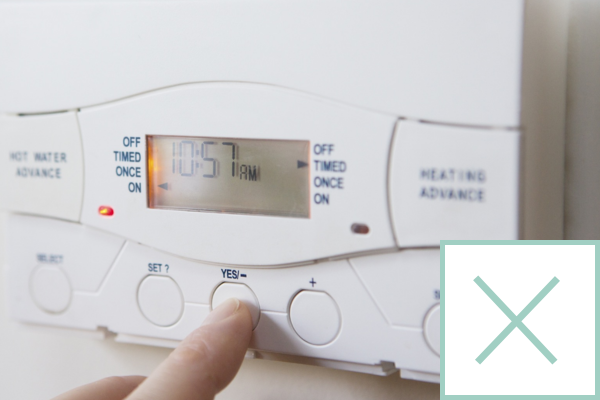
Heating programmer
Some people confuse their meter for their heating programmer.
A heating programmer lets you choose when your heating comes on. It’s often by the boiler or on the boiler itself. It might also be in a cupboard, or on the wall in a hallway.
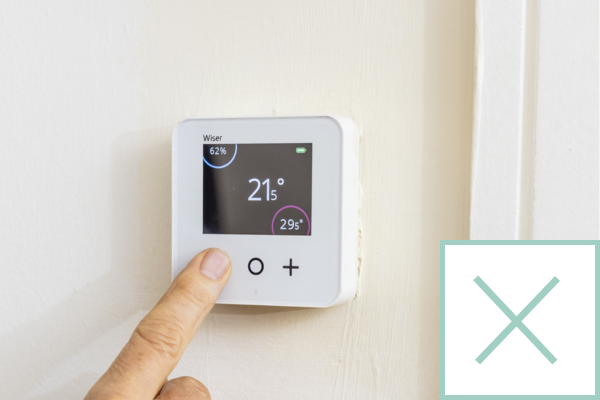
Room thermostat
Some people confuse their meter for their room thermostat.
Your room thermostat lets you choose how warm your home gets. It’s often on the wall in a hallway.
Your thermostat might have a touchpad and digital display like the one in the picture. Or it might have dial which turns the temperature up or down.
3. Make sure the photo shows the meter serial number
Every energy meter has a serial number. It’s a unique combination of letters and numbers that you’ll usually find near the barcode.
In this photo, the serial number is S09P7010. (The last two numbers have been removed for privacy reasons).
Confusingly, some meters have two barcodes, with numbers near both. In these cases, the serial number is usually the shorter of the two numbers.
Is this page useful?